
How to run Claude Code remotely on another machine
Start Claude Code on your workstation, walk away, and pick it back up from a browser or phone. Install with npm, run the host, no SSH keys, no VPN.
Claude Code runs in a terminal on one machine. That is fine while you are sitting at it — and awkward the moment you are not. The agent is mid-refactor on your workstation, you have to leave, and the session is stranded wherever you launched it.
TermLink puts that terminal behind your Google account, so the machine keeps running the agent while you watch it from wherever you are. This post is the walkthrough; for how the whole thing fits together, start at Claude Code remote access.
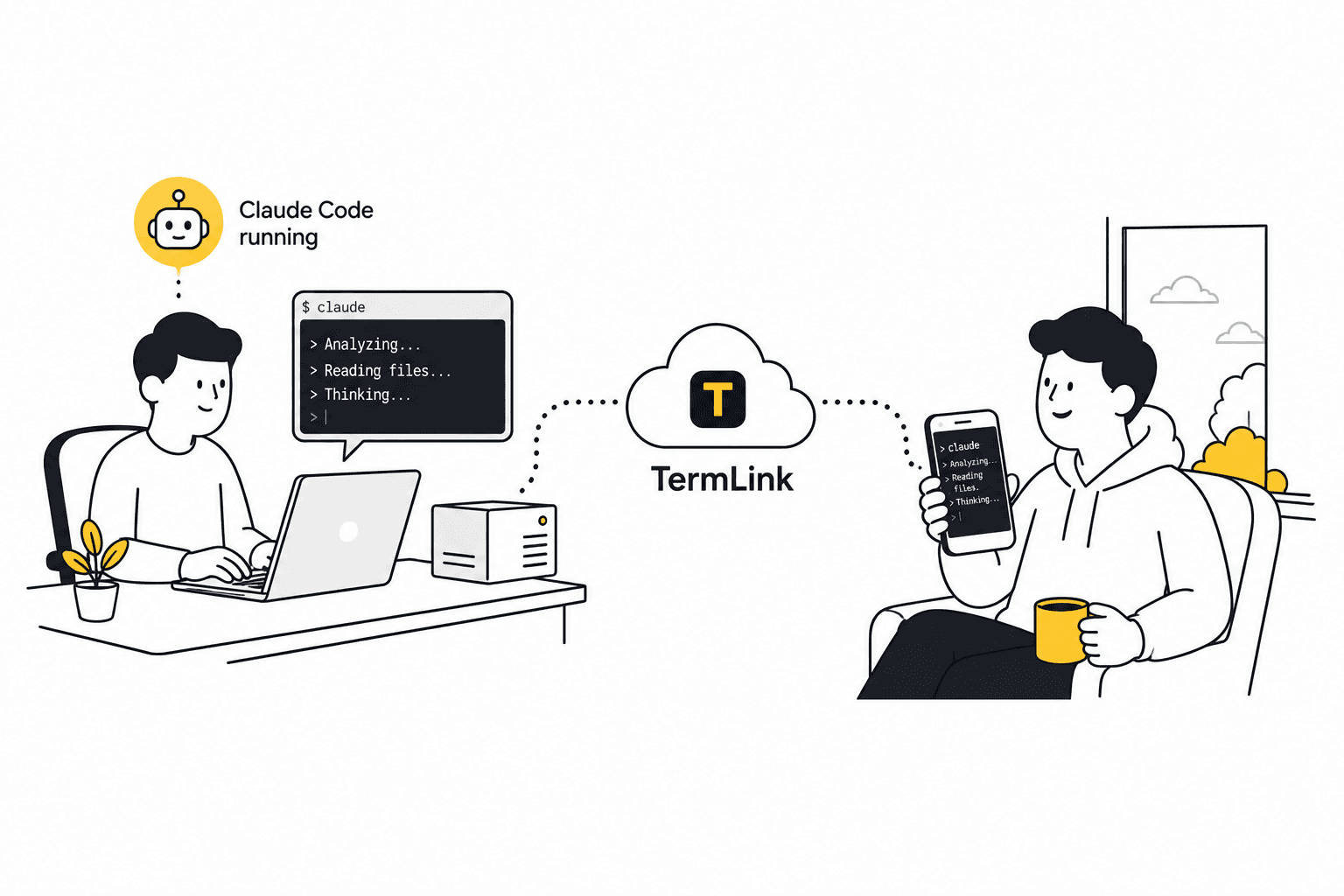
The session belongs to the machine, not to you
This is the part worth understanding, because everything else follows from it.
When you run termlink start on a machine, that process owns the sessions you open on it. Claude Code runs inside one of them, through the host's own SDK integration — you sign in to Claude Code yourself first (claude), and the host uses that. Your browser is only a window onto the session — so closing the tab, shutting your laptop, or losing signal in a tunnel does not touch the agent. It keeps working.
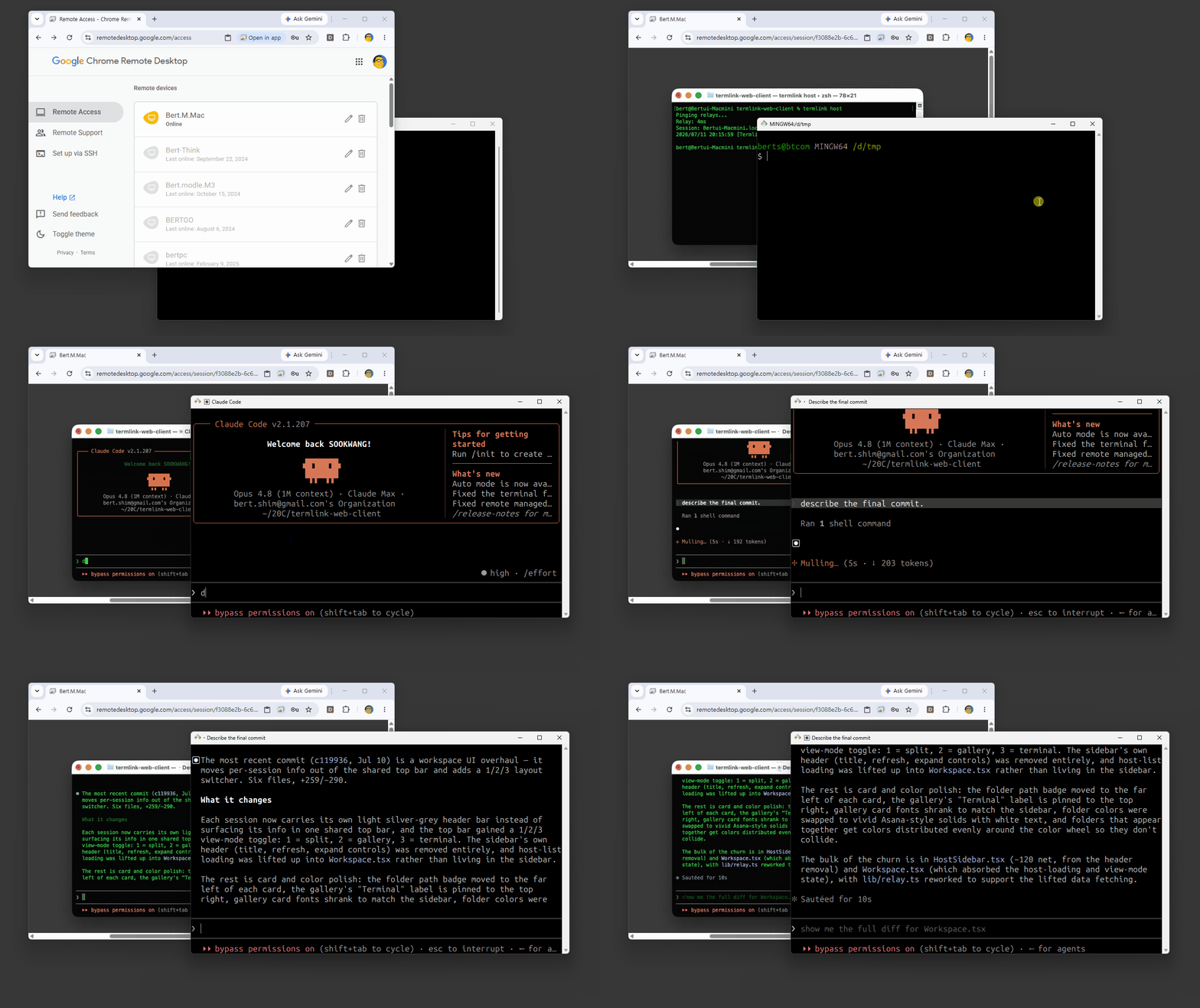
When you come back and reconnect, TermLink repaints the screen exactly as the agent left it. Claude Code draws a full-screen terminal UI, and it survives the round trip intact:
The one thing to know: this is not tmux. TermLink does not detach the session into a background daemon. The termlink start process on that machine has to stay running — if you kill it, or the machine sleeps, the agent goes with it. Leave it up on the machine you actually want the work to happen on.
Approvals: the reason a long run does not stall
Claude Code stops and asks before it runs a command. Sensible when you are watching. Useless when you are not — you come back after lunch and find the agent has been sitting on a permission prompt for forty minutes.
A Claude session in TermLink carries its own approval setting, in the session header. It starts at Ask for everything. Move it to Allow file edits and file changes go through while a command still waits for you; move it to Allow commands and edits and both go through, so the run keeps moving.
A plain terminal session works differently. It has a single Auto-Yes switch that watches the screen and confirms a highlighted Yes or Allow. Both are written up here.
Two things to be honest about, because they decide how far you should take it:
- It approves without reading. Neither one judges whether a command is a good idea. It is a convenience, not a safety review.
- Questions are left alone. When Claude asks something open-ended, or wants a plan approved, the session waits for you in every setting. That is deliberate.
If you have already tried auto-accept edits or the skip-permissions flag and want to know how those compare, how to stop Claude Code asking for permission every time goes through each mode and what it does not cover.
So: move it up for a test run, a refactor, a build you trust. Leave it at Ask for everything when the agent is doing something you would not want auto-confirmed. It is per session and it starts at the strictest setting.
Prompting from a phone, like a chat
On a phone, the terminal gets a message box at the bottom — type, hit send. It reads like texting a colleague, except the colleague is a shell.
That changes the shape of the work. You check what the agent did over lunch, type the next instruction, and send it. It picks up. You are not "remoting into a computer"; you are continuing a conversation.
You can also paste or drop an image onto the terminal — a broken layout, a stack trace, a design mock. TermLink uploads it to the host machine and types the saved path into the prompt for you, so your next message can just point Claude at the file.
Notifications are opt-in, and they're browser notifications. Switch them on in Settings and you get a desktop notification when the agent finishes or starts waiting. The limit worth saying plainly: they need a TermLink tab open somewhere, so a locked phone won't get one, and there's no push or email. The glanceable list is what covers that gap — each machine card shows that session's most recent Claude message, so you can tell which agent is still working and which one is waiting on you.
Several agents, one list
The list is the point once you are running more than one.
Register as many machines as you like — your laptop, a workstation under the desk, a box that exists only to run agents. Each one shows up as a card with its latest message, and you switch between them the way you switch between chats. Whether the sessions live on one machine or ten does not change how you work with them.
For a team running a fleet of agents, that is the whole pitch: one place to see what every agent is doing, from any device, without giving anyone SSH access to anything.
Putting it together
On the machine where your code lives:
npm install -g @termlink/cli
termlink login      # once, with Google
cd ~/work           # the folder sessions should open in
termlink start      # leave this running
The cd matters more than it looks. A session can only open inside the folder you started the host in, and you pick which folder underneath it from the browser. Skip that line and you are sharing your whole home directory rather than the one project you meant to.
Then from anywhere — the web client in a browser — pick that machine, start a Claude session, and move its approval setting up if the job is one you trust to proceed on its own.
Then close the tab. The agent does not care.
Frequently asked questions
How do I run Claude Code on a remote machine?
Install the host with npm install -g @termlink/cli, run termlink login on the machine where your code lives, cd into the project, then run termlink start and leave that process running. The cd is not optional detail: a session can only open inside the folder you started the host in, so that line decides what the machine exposes. From anywhere else, sign in to TermLink in a browser, pick that machine, and start a Claude session. The agent runs there; the browser is a window onto it.
Do I need SSH or a VPN?
No. The host dials out to the relay and never accepts an inbound connection, so there is no port to open and no key to distribute. See how a remote terminal works without SSH or a VPN.
Does the agent keep running if I disconnect?
Yes, as long as the termlink start process stays up on that machine. Closing the tab, losing signal, or shutting your laptop does not touch the agent. Reconnect and the terminal is repainted as it was left.
Is this the same as tmux?
No, and the difference matters. tmux detaches a session into a background daemon that survives you logging out. TermLink does not — kill the host process or let the machine sleep and the session goes with it. What TermLink adds is the browser, the phone, several machines in one list, and approvals answered while you are away. See TermLink vs SSH, tmux, and remote desktop.
Can I run it on a headless server?
Yes. A box with no desktop is the natural home for a long agent job, and it is exactly what remote desktop tools cannot help with. termlink start on the server is all it needs.
Can I do this from a phone?
Yes — that is often the point. See using Claude Code from your phone.
New to TermLink? Start with Getting started with TermLink — signing in, registering a machine, and connecting to it. For the wider picture, Claude Code remote access.
TermLink keeps your agent running on your own machine and gives you the terminal from anywhere. Register a machine and open its session from any browser. Free plan, no card.